iPhone guide · Live Text vs Krane
How to scan business cards on iPhone
Your iPhone can read the text on a business card, but it doesn’t build the contact. Live Text hands you one field at a time. Krane fills every field of the contact from one shot.
Free for 10 scans a week · Updated November 2026
Drawing: the iPhone Camera with Live Text on a business card for Jane Cooper. Only the phone number is selected, and the New Contact sheet has the phone number filled and the name, company, email and website empty.
Does the iPhone have a business card scanner?
No. The iPhone has no app built to scan business cards, but three tools that come with it each do part of the job. Live Text, in the Camera and Photos apps, reads the text on the card and lets you act on one item at a time. The document scanner in Notes and Files saves the card as a PDF. The Camera saves it as a photo.
All three are free and already on your phone. None of them turns a card into a contact with the name, title, company, phone and email in their own fields. For that you type, or copy and paste, each field yourself, or you use a scanner app such as Krane.
Live Text: one field at a time
Every step to save one card with Live Text, against Krane's.
Live Text
- Point the Camera, tap Live Text
- Hold the phone number
- Add to Contacts → Create New Contact
- Back to the Camera
- Hold the email
- Add to Existing Contact, find it
- Back to the Camera
- Copy the name, paste it
- Back to the Camera
- Copy the title and company, paste them
- Again for the address
Krane
- Hold the card under the camera
- Add to Contacts
Live Text reads the card well. It finds phone numbers, email addresses and websites in the text and makes each one tappable.
Open the Camera and point it at the card. When the iPhone sees text, the Live Text button appears in the corner of the viewfinder. Tap it and the text freezes on screen. Touch and hold the phone number, and a menu offers to call it, send a message, copy it, or add it to Contacts. Choose Add to Contacts, then Create New Contact. You now have a contact with a phone number and no name.
Go back to the card for the email. Touch and hold it, choose Add to Contacts again, and this time Add to Existing Contact, then find the contact you just made. The name, job title and company are plain text to Live Text, so you select each one, copy it, switch to Contacts and paste it into the right field. A second phone number or the address is another round of the same.
The result is a correct contact once every field is in, after five or six trips between the Camera and Contacts. For 20 cards from a meeting, that is every trip 20 times. Live Text also works on a photo you already took: open it in Photos and tap the same button.
Notes and the document scanner: a picture of the card
The Notes app can scan a card as a document. In a note, tap the camera or attachment button and choose Scan Documents. The iPhone finds the edges of the card, straightens it and saves it as a PDF inside the note. The Files app has the same scanner in its menu and saves the PDF to a folder you pick.
The scan is sharp and easy to keep, and Notes can find words in it when you search. It is still a picture of a card. The phone number isn’t in a phone field, the person isn’t in your Contacts, and the card doesn’t show up when you call or write to them. A plain photo from the Camera goes to Photos, next to everything else you shot that week.
The question most people search
Where do scanned business cards go on iPhone?
Each tool puts the card in a different place, and only one of them makes a contact.
| Tool | Where the card ends up | A contact with every field filled? | Find it later by event or company? |
|---|---|---|---|
| Camera photo | Photos library | No | No |
| Live Text | Nowhere, until you add each item to Contacts | Only the fields you add one by one | No |
| Notes or Files scan | A PDF in a note or a folder | No | Only by searching the text |
| Krane | Your card list in Krane, and Apple Contacts with one tap | Yes, from one shot | Yes, by event, company, tag or any field |
A photo and a PDF keep the card safe but leave the work of typing it in. Live Text saves some typing and adds a tap for every field. Krane saves the person as a contact and keeps the list of everyone you met in one place, sorted by where you met them.
One shot fills every field
Krane reads the whole card at once and puts each piece of text in the field it belongs to. From one shot you get:
- the person’s name, job title and company,
- every phone number, labelled mobile, work, fax or other,
- every email address and website,
- social profiles and the street address,
- anything else on the card, kept under additional info.
The labels matter on a card with three numbers. Krane files the mobile as mobile and the office line as work, so you know which one to call. With Live Text you see three numbers and decide yourself.
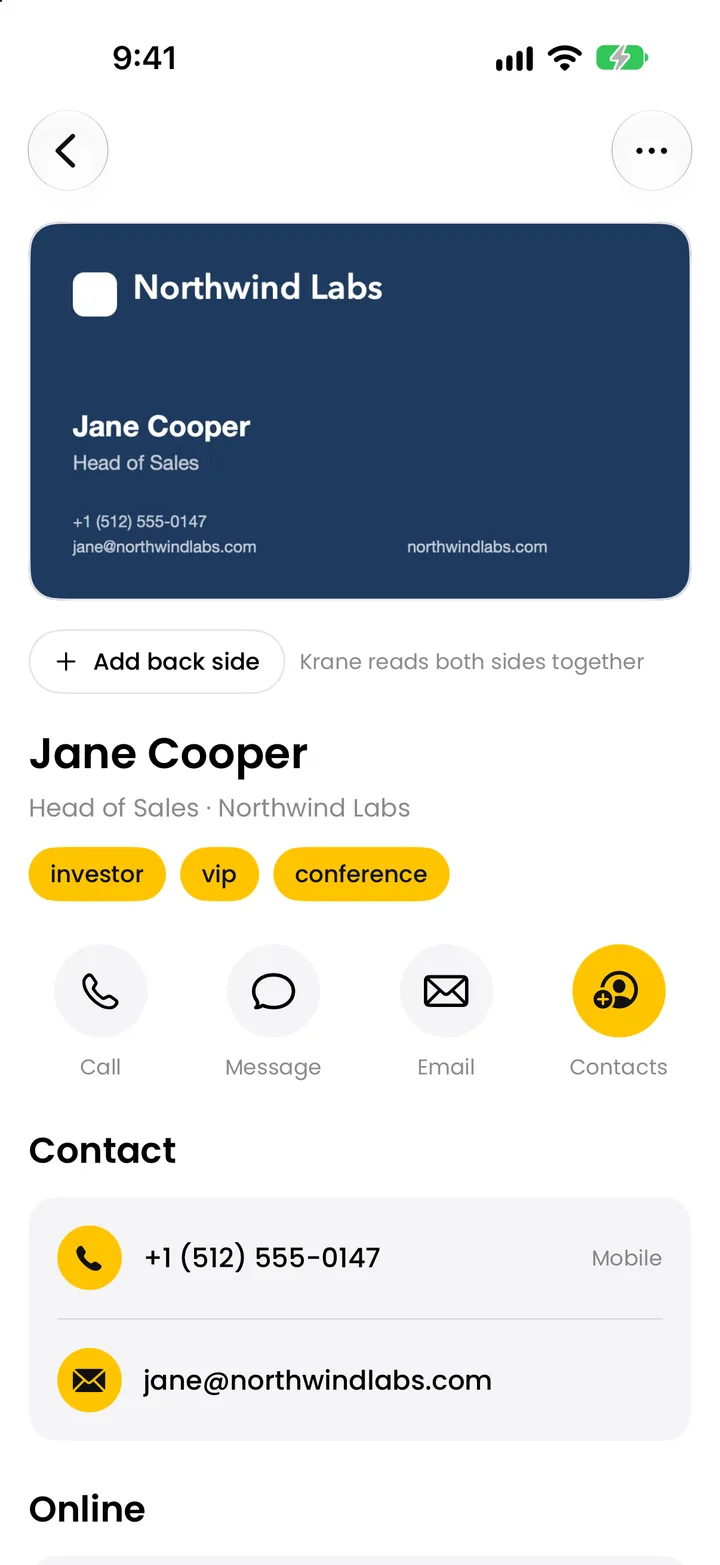
If the back of the card has more on it, a direct line or the same details in Japanese, open the card and tap Add back side. Krane reads the back into the same contact, so one person stays one record. Cards in almost any language and script are read, including Japanese, Chinese and Korean, and a name in a non-Latin script gets a Latin spelling added next to it.
The card appears on screen with its fields filled in and the photo of the card above them. If a field is wrong, tap it and fix it, as you would in Contacts. From the card you can call, message or email the person, or open their website and social profiles.
You don’t need signal for any of this. Krane reads the card on your iPhone right away and checks it again when you’re back online, then fills in anything the first read missed.
How-to
How to scan a business card with Krane
- Open Krane and tap Scan. The camera opens in “Card or badge” mode, which reads business cards and event badges.
- Lay the card flat and hold the iPhone over it. Keep still. Krane takes the picture by itself as soon as the card stops moving in the frame; you can also tap the shutter button.
- Check the fields. The contact appears with the name, title, company, phones, email, website and address filled in. Tap any field to correct it.
- Add the back, if there is one. Open the card, tap Add back side and scan the other side.
- Tap Add to Contacts. The person is saved to Apple Contacts with every field in place.
Cards you photographed earlier work too. Choose a photo from your library, or several at once, and each one becomes a card. You can also start a scan by asking Siri or from a Shortcut.
A stack of cards, not one
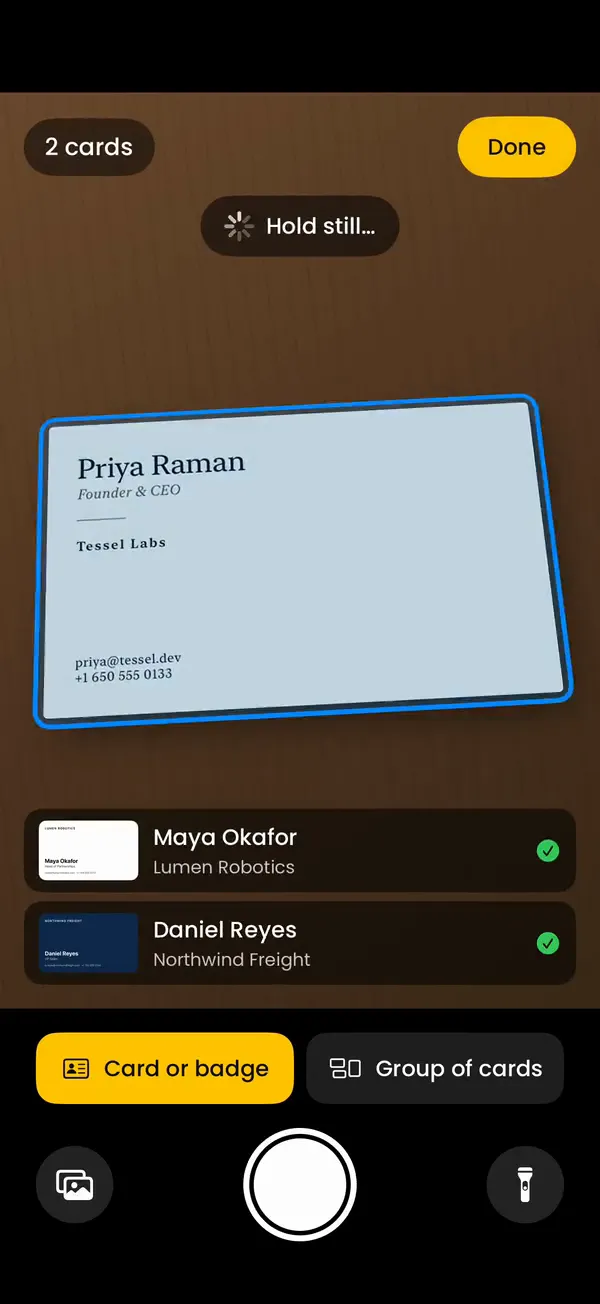
A meeting or a show leaves you with a pile of cards. Krane has two ways through it.
Card after card: hold the phone over the table and lay the cards down one at a time. Krane shoots each card as soon as it is still and reads it while you put down the next. The free plan scans three in a row this way in one session; with Krane Pro the run has no limit.
Group of cards: with Krane Pro, switch the camera to “Group of cards”, spread the cards out and take one photo. Krane reads every card in the spread and saves each as its own contact.
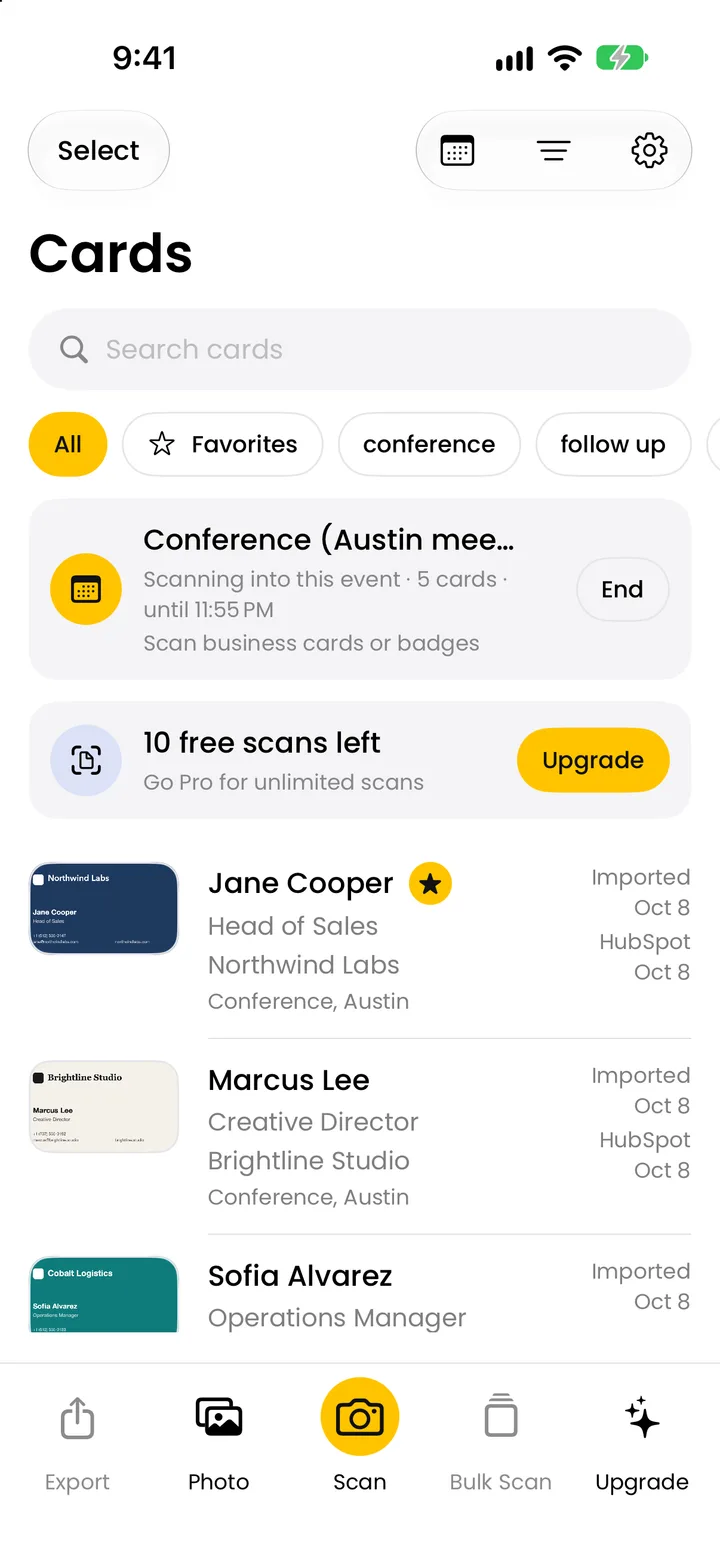
If you start an event first, every card from the stack is filed under it, with “Met at” filled in and the event’s tags added. The trade show lead capture page covers a whole show this way, badges included; the badge scanner page covers the badges.
After the scan: Contacts, events, CRM
Add to Apple Contacts with one tap. The contact then shows up wherever your iPhone uses Contacts: in the Phone app when they call, in Mail when you write, in Messages. If your iPhone’s default contacts account is an Exchange or Google account, the contact is saved there and reaches Outlook or Gmail too. You can also share any card as a vCard, the standard contact file other phones and email programs open.
The card also stays in Krane, where you can find it later. Search any field, filter by tag or event, or group the list by company. Add a note about what you talked about, and a follow-up reminder that opens that card when it fires. Scan the same person twice and Krane flags the duplicate and merges the two with one tap.
With Krane Pro you can export one event or every card as a CSV for Excel, Numbers or Google Sheets, or send cards to HubSpot, Salesforce or Pipedrive. A webhook reaches other tools through Zapier, Make or n8n. Each connection is described under CRM sync, and the business card scanner page lists every field Krane reads.
When Live Text is enough
If you get a card now and then and only need the phone number, Live Text is the quicker route. Point the Camera, tap the number, call or save it. Nothing to install.
Krane earns its place when the cards come in stacks: more than a few a week, people you need to follow up with, a trade show, or a CRM the contacts have to reach. That is when filling every field from one shot, and finding the person again by event or company, saves the evening of copying and pasting.
Free and Pro
Krane is free for 10 scans in any rolling seven-day week. There is no account to create, and your cards stay on your iPhone, where you can back everything up to one file. Everything in this guide is on the free plan except group scan, CSV export and CRM sync. Krane Pro is a subscription that adds those and removes the scan limit.
FAQ
Questions about scanning cards on iPhone
Does the iPhone have a business card scanner?
Not as a separate app. Live Text in the Camera and Photos apps reads the text on a card, and the Notes and Files apps can scan it as a PDF. None of them fills a contact with every field, which is what a scanner app such as Krane does.
Can I scan a business card into my iPhone Contacts?
Yes. With Live Text you add the phone number or email to a contact one item at a time and type or paste the rest. With Krane you scan the card once and tap Add to Contacts, and the name, title, company, phones, emails, website and address go in together.
Where do scanned business cards go on iPhone?
A Camera photo goes to Photos. A Notes scan is a PDF inside a note, and a Files scan is a PDF in the folder you chose. Live Text saves nothing until you add each item to Contacts. Krane keeps the card in its own list and saves it to Apple Contacts with one tap.
Can Live Text add a business card to Contacts?
Partly. Touch and hold a phone number or email in Live Text and choose Add to Contacts, then create a new contact or add to an existing one. Each item is a separate step, and the name, title and company have to be copied or typed in yourself.
Why doesn't Live Text fill in the whole contact?
Live Text reads text and recognizes things it can act on, like phone numbers, emails and web addresses. It doesn’t decide which line is the person’s name, which is the job title and which is the company, so it can’t lay out a contact. Krane reads the card as a business card and puts each line in its field.
How do I scan a business card with the Notes app?
Open a note, tap the camera or attachment button and choose Scan Documents. Hold the iPhone over the card; Notes finds the edges and saves the scan as a PDF in the note. You can search the text later, but the card does not become a contact.
Is there a free business card scanner app for iPhone?
Krane is free for 10 scans in any rolling seven-day week, with no account. The free plan includes events, tags, notes, reminders, Apple Contacts, vCard sharing and offline reading. Krane Pro is a subscription for unlimited scans, group scan, CSV export and CRM sync.
Can I scan both sides of a business card?
Yes. Scan the front, then open the card in Krane and tap Add back side. Krane reads the back into the same contact, so a card with English on one side and Japanese on the other is still one person.
Can I scan several business cards at once on iPhone?
Yes, two ways. Card after card: lay the cards down one at a time under the phone and Krane shoots each one, three in a row on the free plan and without limit on Krane Pro. Group of cards, with Krane Pro, reads a whole spread of cards from one photo.
Does it work without Wi-Fi or signal?
Yes. Krane reads the card on your iPhone right away, using the text recognition built into iOS. When you’re back online it checks the card again and fills in anything the first read missed.
Can I scan business cards into Outlook from my iPhone?
Krane has no direct Outlook connection yet; it is coming soon. Today, set your iPhone’s default contacts account to your Exchange or Outlook account and tap Add to Contacts on each card, and the contact syncs to Outlook. With Krane Pro you can also export a CSV and import it into Outlook.
How do I organize business cards on my iPhone?
Start an event in Krane before a show or a meeting, and every card you scan is filed under it. Add tags, notes and follow-up reminders, then search any field or group the list by company. All of this is on the free plan.
Does Krane work on iPad?
Yes. Krane runs on iPhone and iPad and needs iOS 18.1 or later. It does not run on Android, Mac or Windows.
Scan your next card in one shot.
Free for 10 scans a week. Krane Pro adds unlimited scans, export and CRM sync.