Free tool
Business card QR code generator
Type your details and this page makes a QR code for business cards and badges. A phone camera scans it and offers to save you as a contact. Free, no account, nothing uploaded.
Runs in your browser. Nothing is uploaded, no account.
Your name
Show the vCard text in the code
How to make a QR code for business cards
- Fill in the fields: first and last name, company, job title, mobile and work phone, email, website. Address and a note are optional; a blank field is left out of the code.
- Check the card mock. The code redraws as you type, next to your name and company.
- Pick the dark and light colors and the error-correction level. The default, M, suits most cards.
- Download the SVG for print, or the PNG (1,024 pixels) for screens. The email signature generator puts the same code in your email signature.
- Scan it from the screen with two or three phones before printing.
What the code holds (vCard 3.0)
A business card QR code from this page holds a vCard, the contact-card format phones read. The phone opens its new-contact screen with the fields filled in. The text is vCard 3.0 in UTF-8, so a name with accents, or in Japanese or Cyrillic script, comes through as typed. The exact text is under the preview.
This is a static code: the contact is written into the squares themselves. Many generators instead encode a short link to the vendor’s server, which is how those codes can be edited after printing, how they count scans, and why they stop working when the plan lapses. This code has no link in it, so nobody is told when it is scanned and nothing expires. To change a phone number, you make a new code and reprint.
| Field | vCard line | Notes |
|---|---|---|
| Name | N and FN | N holds last and first name apart; FN is the full name the phone shows |
| Company | ORG | Saved as the contact’s company |
| Job title | TITLE | |
| Mobile phone | TEL;TYPE=CELL | Saved with the Mobile label |
| Work phone | TEL;TYPE=WORK | Saved with the Work label |
EMAIL | ||
| Website | URL | Saved as the contact’s website; a LinkedIn profile address works here too |
| Address | ADR | Optional; usually the longest line |
| Note | NOTE | Optional; keep it to a few words |
Other people’s .vcf files go through the VCF to CSV converter into a spreadsheet.
Business card QR code size and printing
A common rule of thumb is at least 2 cm (0.8 in) across on a business card, larger when the vCard is long. Every character adds squares, so each square prints smaller, and small squares blur. Under the preview, the tool gives the smallest width for your code, worked out so each square prints at least 0.4 mm wide. It warns when the code gets dense; the address and the note add the most.
Leave a quiet zone, an empty margin about four squares wide, on all sides, and keep the code dark on a light background. Light squares on a dark card fail on some readers. Use the SVG for print: it is a vector file, so it stays sharp at any size.
Error correction is how much of the code can be scratched or covered and still read: about 7% at L, 15% at M, 25% at Q and 30% at H. Higher levels add squares. Go to Q or H if the card will live in a wallet or something will sit over the middle.
Common mistakes
- A light code on a dark card.
- A code under 2 cm, or a long vCard squeezed into a small one.
- A cropped quiet zone, the code touching a logo or the card’s edge.
- A paragraph in the note field.
- Printing 500 cards without scanning the proof on a second phone.
- A dynamic code from a subscription service, which stops working when the plan ends. See which QR codes expire, and why.
Guides for this tool
- When QR codes expire, and when they never doStatic vs dynamic codes
Krane for iPhone
With Krane, the other side of the handshake
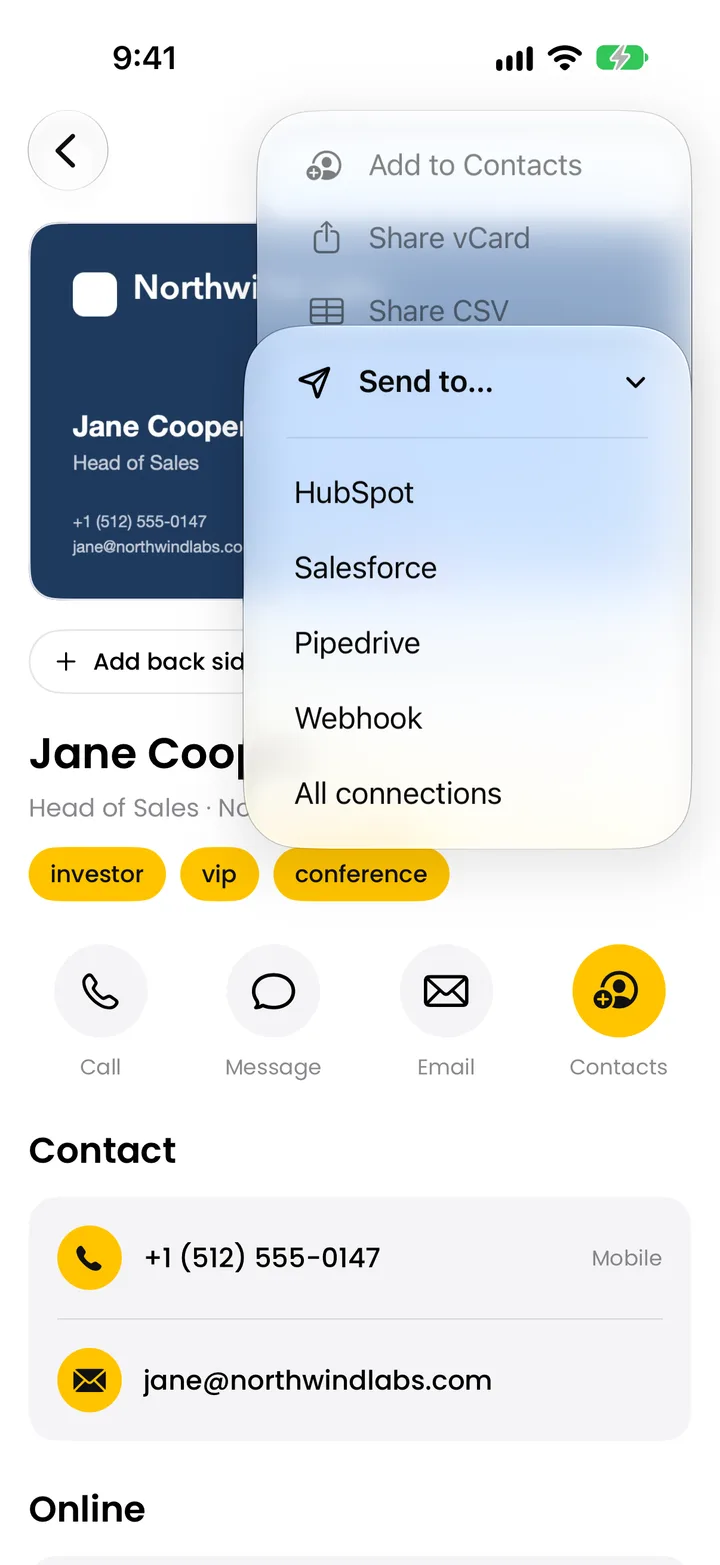
This tool makes the code on your card. Most cards you are handed at a show have no code. Krane, on iPhone, iPhone Duo and iPad, photographs the printed card and reads it into a contact: name, title, company, phones, emails, website and address. It files each card under the event you’re at and, with Krane Pro, sends it to HubSpot, Salesforce or Pipedrive. On a badge with a QR code, the badge scanner merges the contact data in the code with the printed details. Krane can’t import a .vcf or CSV file; it reads paper. The business card scanner is free for 10 scans a week.
FAQ
Questions about vCard QR codes
Is this business card QR code generator free?
Yes. There is no account, no email address to enter and no watermark on the download. The page runs in your browser: the details you type are turned into a code on your own computer or phone, and nothing is sent to kraneapp.com. The maker of Krane, the iPhone business card scanner, built it.
Will the QR code expire?
No. The code is static: your contact details are written into the squares, with no link to a server in between, so it reads for as long as the print is legible. For the same reason you can’t edit it after printing. A new phone number means a new code and a new print run, so put only lasting details in the code and keep a direct line that may change in print only.
Does the code work on iPhone and Android?
Yes. The built-in camera app on an iPhone and on most Android phones recognizes a QR code and, when the code holds a vCard, offers to add the person to Contacts. Older phones may need a QR reader app. Names with accents or in Japanese, Korean or Cyrillic script come through. Test with both kinds of phone before printing.
How do I make one on iPhone?
Open this page in Safari on your iPhone, type your details and tap Download PNG. Safari saves the file to Downloads in the Files app. To keep it in Photos, open it in Files, tap Share, then Save Image. Tap Download SVG as well and send that file to your printer. Before you order, scan the code on your screen with a second phone.
How do I put this QR code on a Canva business card?
Download the SVG, which stays sharp at any print size, or the PNG. In Canva, open your card design, add the file under Uploads and drag it onto the card. Keep the white margin around the squares, make the code at least 2 cm (0.8 in) across, and scan the design on your screen with a phone before you order prints.
Can I add my LinkedIn profile?
Yes, through the Website field. Paste your profile address, such as linkedin.com/in/yourname, and the tool writes it into the vCard as the contact’s website (the URL line), which the phone saves as a link. There is one website field, so it holds either LinkedIn or your company site. Type the other into the note, where it is saved as plain text. Each extra address adds squares.
Can I put it in Apple Wallet?
No. Apple Wallet holds passes, and a pass is a signed file this tool doesn’t make; it makes a QR image. To show your code from your phone, save the PNG to Photos and open it when someone asks for your details. They scan it from your screen with their camera, the same as from a printed card.
How big should the QR code be on a business card?
At least 2 cm (0.8 in) across is the common rule, and bigger if the vCard is long. The more characters in the code, the more squares, and the smaller each square prints. The tool shows the smallest width for your code under the preview. Leave an empty margin about four squares wide around it, and if the preview looks crowded, cut the address or the note.
Which error correction level should I choose?
M, the default, for most cards. It lets about 15% of the code be damaged and still read, with a moderate number of squares. L (about 7%) makes the smallest code; Q (25%) and H (30%) survive more scratching but add squares, so they need more room on the card. Choose H if you plan to cover the middle with a logo.
Can I put a logo in the middle?
This tool doesn’t add one. If you place a logo over the code in your layout software, it covers squares, and the phone has to recover them from the error-correction data. Set the level to H, keep the logo to a small part of the code’s area, and test the result on two or three phones before printing.
Can Krane read a QR code on a card or badge?
Yes. On a badge, Krane decodes QR, PDF417 and Aztec codes and merges the contact data in the code with the printed name, title and company into one contact, which is how its trade show lead capture works. On a business card it reads the whole printed side, code or not, into named fields. Krane can’t import a .vcf file; it works from the camera and your photo library.
Handed a card with no QR code? Scan the whole card.
Free for 10 scans a week. Krane Pro adds unlimited scans, export and CRM sync.
On a computer? Point your iPhone camera at the code, or text me the link.