Free tool
Free email signature generator and templates with a QR code
Fill in your details, pick one of four templates, add your logo by its web address and copy the signature into Gmail, Outlook or Apple Mail. Free, with no sign-up.
Runs in your browser. Nothing is uploaded, no account.
Paste with Copy signature into Gmail (Settings, See all settings, Signature), Outlook (Settings, Accounts, Signatures) or Apple Mail (Settings, Signatures). Steps for each app are below.
Four email signature templates
All four use the same details; switch between them and the preview redraws.
- Classic. Name, title and company stacked, a short rule in your accent color, then phone, email and website. It suits most people.
- Divider. Name and title on the left, a vertical colored rule, contact details on the right. A long list of details takes fewer lines, and a logo has room above the name.
- One line. Everything on a single line under a colored rule, without the address or the short line. It suits people who send many short replies.
- With QR. The Classic lines with a vCard QR code beside them, for people who meet contacts in person, at events or in sales.
Paste the https address of a logo already on your website into Logo image URL. It sits above your name (at the start of the line in One line), at most 48 pixels high, linked to your website.
How to add your signature in Gmail, Outlook and Apple Mail
Press Copy signature on the tool, then paste it where the table says.
| App | Where to paste it | Watch for |
|---|---|---|
| Gmail (computer) | Settings (gear) → See all settings → Signature → paste → Save Changes at the bottom | The pasted QR won’t show; add it with Insert image. Limit 10,000 characters, image included. |
| Outlook (new and web) | Settings → Accounts → Signatures → Add signature → name it → paste → pick it for new messages and for replies → Save | Not added to a message already open; start a new one. |
| Classic Outlook for Windows | File → Options → Mail → Signatures → New → paste under Edit signature → set defaults → OK | Stored on that computer only; set it up on the web too. Embedded QR not shown; insert the PNG. |
| Apple Mail on Mac | Mail → Settings → Signatures → pick the account → + → name it → paste into the preview | Untick “Always match my default message font” or Mail swaps your font. |
| Gmail app on iPhone | Menu → Settings → Signature settings → turn on Mobile Signature | Only for mail sent from the app; off, it uses your computer signature. |
Press Copy signature, not Copy HTML source, before you paste into these boxes.
On iPhone
iPhone Mail’s signature box (Settings → Apps → Mail → Signature) offers bold, italic and underline. Paste the signature there and the colors, font, columns and pictures are mostly dropped, leaving plain text. Type a short one instead: name, title, company, phone. The Gmail app has its own: Menu → Settings → Signature settings → Mobile Signature, for mail sent from that app.
What to put in a signature
Name, job title, company, one phone number and one website. Your email address is optional: the reader has it in the From line. Keep the short line under your name only if it says something the title doesn’t. Add a logo if your company already has one online. Two or three social links is enough; the tool shows LinkedIn, X and Instagram as text links, so no icon gets blocked as an image. Leave out quotes, and skip legal text unless your company requires it, because it repeats at the foot of every reply.
The QR code, and where it shows
The With QR template puts a QR code beside your details. It holds a vCard 3.0, the contact-card format phones read, with the same details you typed. A phone camera pointed at it, on screen or on paper, offers to save the contact. The vCard QR code generator makes the same code for a printed card.
The picture is embedded in the signature’s HTML, and not every app shows embedded pictures. Apple Mail on Mac and iPhone, Outlook for Mac, Outlook.com and Outlook on the web, Outlook for iPhone and Android, Yahoo Mail and Thunderbird show it. Gmail, on the web and in its apps, does not; nor does classic Outlook for Windows 2007 to 2016, and some antispam filters treat embedded images as suspicious.
The fix: press Download QR PNG and insert the file with the signature box’s image button, or host the PNG on your website and paste its https address into the QR image address field. Then send yourself a test email.
When the signature looks wrong
- The font changed. In Apple Mail, untick “Always match my default message font”.
- Colors gone on iPhone. iPhone Mail keeps only bold, italic and underline; type a plain signature there.
- QR code missing in Gmail. Gmail doesn’t show the embedded picture; insert the downloaded PNG, or host it.
- Logo missing. The address must start with https:// and open the image itself in a new tab.
- Signature not in the open message. Outlook adds it to new messages only; start a new one.
- Gmail won’t save it. The limit is 10,000 characters, an image included; use a smaller or a hosted PNG.
Krane for iPhone
With Krane, the cards you're handed
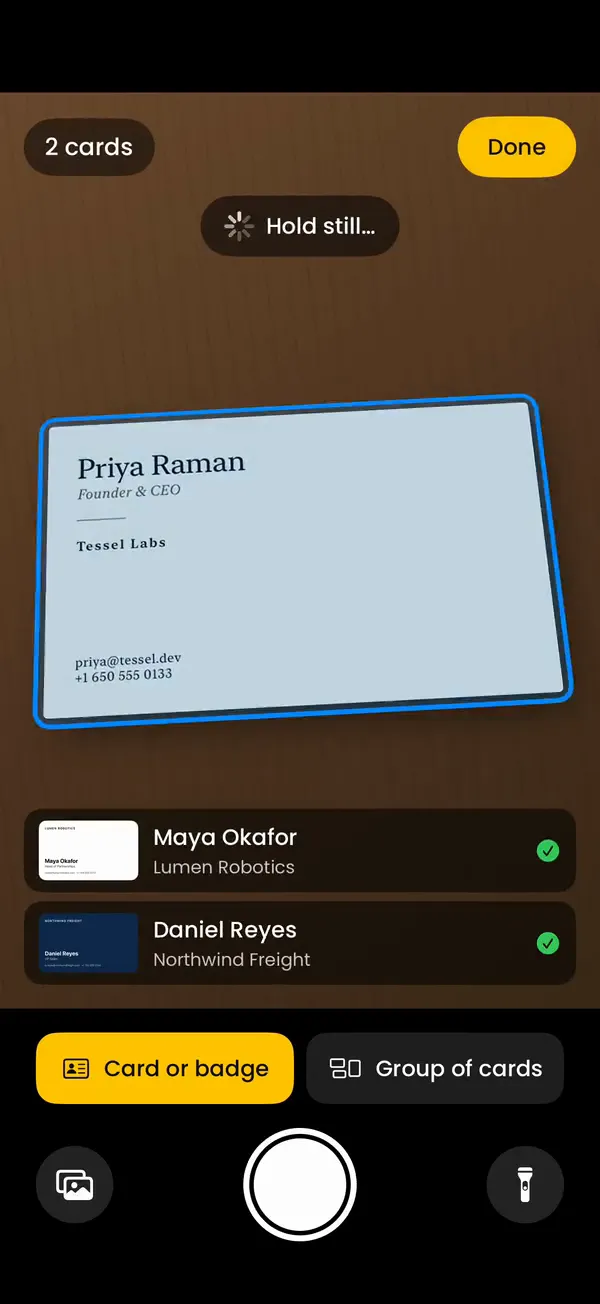
Your signature is the card you send. For the cards people hand you, Krane reads a paper business card or an event badge on iPhone, iPhone Duo and iPad into a contact, name to address, and files it under the event you’re at. With Krane Pro the contact goes on to HubSpot, Salesforce or Pipedrive. The free plan is 10 scans a week; pricing lists what Pro adds, and the business card scanner page shows a scan.
FAQ
Questions about email signatures
Is this email signature generator free?
Yes. There is no account, no email address to enter and no “made with” badge in the signature. The page runs in your browser, so the details you type are turned into a signature on your own computer or phone and nothing is sent to kraneapp.com. The people who make Krane, the iPhone business card scanner, built it.
Does it work with Gmail?
Yes, for the signature itself. The HTML is built the way mail apps expect, with tables, inline styles and web-safe fonts, at most 600 pixels wide, and it pastes into Gmail’s signature box with Copy signature. The one exception is the QR picture, which Gmail doesn’t show when it’s embedded. Add it with the box’s Insert image button, or host the PNG and paste its address into the tool.
Can I add my company logo?
Yes, if the logo is already online. Paste the https address of the image, such as the logo file on your company website, into Logo image URL; the signature shows it above your name, with its size set. There is no upload: this page has no server to keep your file, and Gmail and classic Outlook for Windows don’t show pictures embedded inside a signature. In Gmail you can also add a logo with the signature box’s Insert image button.
Why doesn't my QR code show in Gmail?
The tool embeds the QR picture inside the signature’s HTML, and Gmail, on the web and in its iPhone and Android apps, doesn’t display pictures embedded that way. Press Download QR PNG, then use Insert image in Gmail’s signature box to add the file, from your computer, your Drive (shared publicly) or a web address. Or host the PNG on your own site and paste its https address into the QR image address field.
How do I add an HTML signature in Outlook?
In the new Outlook for Windows and Outlook on the web: Settings → Accounts → Signatures → Add signature, name it, paste with Copy signature, choose it for new messages and for replies and forwards, then Save. In classic Outlook for Windows: File → Options → Mail → Signatures → New, paste under Edit signature, set the defaults, then OK. A classic Outlook signature lives on that computer, so set it up on the web too if you use both.
Can I use it on iPhone Mail?
Only as plain text. iPhone Mail’s signature box, under Settings → Apps → Mail → Signature, offers bold, italic and underline, and drops most colors, fonts, columns and images from a pasted signature. Type a short signature there: name, title, company, phone. If you send from the Gmail app, turn on Mobile Signature under Settings → Signature settings; it applies to mail sent from that app.
What is in the QR code?
A vCard 3.0, the contact-card format phones read, with the same name, title, company, phone numbers, email, website and address you typed into the form. There is no link in it and no server behind it: the details sit in the squares themselves, so a phone camera reads them and offers to save the contact. Change a detail and the tool redraws the code.
Do you store what I type?
No. The generator runs in your browser; the signature, the HTML file and the QR PNG are made on your own computer or phone, and nothing you type reaches kraneapp.com. The only thing the page fetches is a picture you point it to, your logo or a hosted QR image, from your own address so the preview can show it.
Can Krane scan the business cards people hand me back?
Yes. Krane photographs a paper card on iPhone, iPhone Duo and iPad and reads it into a contact: name, title, company, phones, emails, website and address. At an event, the badge scanner reads the printed badge and its QR, PDF417 or Aztec code too, and every scan is filed under that event for trade show lead capture. The free plan covers 10 scans a week.
Your signature is the card you send. Krane reads the ones you're handed.
Free for 10 scans a week. Krane Pro adds unlimited scans, export and CRM sync.
On a computer? Point your iPhone camera at the code, or text me the link.